Shopify Store Speed Optimization: How Faster Pages Drive More Sales
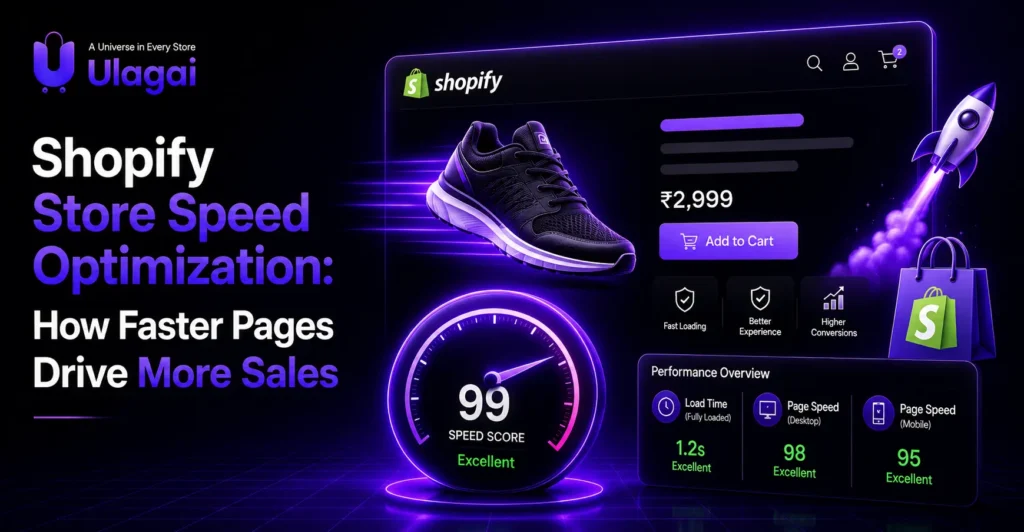
Shopify Store Speed Optimization: How Faster Pages Drive More Sales Introduction A slow Shopify store can quietly cost an ecommerce business sales. Customers may leave before products appear, struggle to interact with the page on mobile, or lose confidence when every click feels delayed. Shopify speed optimization focuses on removing these performance problems without sacrificing the features customers actually need. For businesses working with Ulagai, speed should be treated as part of the ecommerce experience rather than a technical task completed once. This guide explains what makes a Shopify store slow, how to test its performance, which improvements usually matter most, and when professional optimization can make sense. What Is Shopify Speed Optimization? Shopify speed optimization is the process of improving a store’s loading performance, responsiveness, and visual stability so customers can browse and shop with less friction. It involves improving the theme, images, scripts, apps, and page resources that affect how quickly a storefront becomes usable. Shopify already provides infrastructure designed for performance, including a CDN and automatic asset optimization. That means a slow store is not necessarily caused by Shopify itself; theme customizations, excessive JavaScript, third-party applications, large images, and unnecessary page elements can also affect storefront performance. Why Does Shopify Store Speed Matter for Sales? Store speed matters because customers need to see products, interact with variants, add items to cart, and continue shopping without unnecessary delays. A technically impressive store can still perform poorly commercially if customers cannot use it smoothly. Shopify itself notes that storefront performance can influence customer experience, conversion rates, repeat business, and search engine rankings. Speed is especially important on mobile devices. A customer browsing through a mobile connection may have less processing power, a smaller screen, and less patience for heavy pages. A mobile-first approach therefore helps both usability and ecommerce performance. What Makes a Shopify Store Slow? The most common causes are usually related to the amount of work the browser has to perform before a customer can interact with the page. Large images, unnecessary scripts, multiple third-party apps, excessive animations, and poorly optimized theme code can all add processing or network overhead. Third-party applications deserve particular attention. An app may provide useful reviews, pop-ups, tracking, wishlists, recommendations, or marketing features, but its scripts can add additional requests and JavaScript to storefront pages. Shopify recommends reducing JavaScript where possible, avoiding unnecessary external frameworks, deferring non-critical scripts, and loading resources only when they are required. How Can You Improve Shopify Page Speed? Improving Shopify page speed starts with measuring the current experience and then fixing the largest sources of delay. Do not install a speed optimization app immediately without understanding what is actually slowing the store. 1. Optimize Large Product Images Images are often among the largest resources on ecommerce pages because product pages can contain multiple high-resolution photographs. Uploading unnecessarily large files means customers may download more data than the screen actually needs. Shopify supports responsive images that allow the storefront to request an appropriate image size for the customer’s device. Shopify also recommends lazy-loading images that appear below the fold while keeping important above-the-fold images available immediately. For a fashion store, for example, a product page might contain six or eight product images. Serving appropriately sized versions rather than unnecessarily huge files can reduce the amount of data the browser needs to process. 2. Remove Unnecessary Shopify Apps A Shopify app should earn its place on your storefront. If an application is no longer contributing to sales, customer experience, operations, or marketing, removing it can eliminate unnecessary scripts and requests. Do not judge apps only by their function inside Shopify Admin. A useful question is whether the app adds storefront resources to pages where customers actually need them. Shopify’s developer guidance specifically warns that additional JavaScript libraries and frameworks can increase bundle sizes and slow down storefront performance. 3. Simplify Theme Code Theme code affects how efficiently a page is rendered. Repeated Liquid operations, excessive JavaScript, unnecessary CSS, and complex page components can increase the amount of work required to display the storefront. Shopify recommends using HTML and CSS for basic functionality where possible and treating JavaScript as progressive enhancement rather than making it responsible for essential shopping functions. 4. Load Non-Critical Resources Later Not every element needs to load at the same moment. Reviews, recommendation widgets, chat tools, tracking features, and some promotional components may not be necessary for the initial screen. Loading non-critical resources after the main content is available can help customers reach useful content faster. Shopify recommends deferring or avoiding resources that are not needed immediately and loading some components when customers interact with them. 5. Use Responsive and Efficient Fonts Fonts can also contribute to loading work. Using unnecessary font variations or multiple external font files can increase resource requests. Shopify recommends considering system fonts where appropriate because they avoid requiring the browser to download another resource before text can render. How Do You Test Shopify Website Speed? A Shopify website speed test should evaluate real user performance as well as controlled laboratory measurements. Shopify provides a Web Performance Dashboard and reports based on Real User Monitoring data, while Lighthouse can be used for controlled performance testing. Core Web Vitals provide three important user-experience measurements: Largest Contentful Paint (LCP), Interaction to Next Paint (INP), and Cumulative Layout Shift (CLS). Current “good” thresholds are LCP at 2.5 seconds or less, INP at 200 milliseconds or less, and CLS at 0.1 or less, measured at the 75th percentile. A useful testing process is: Test the homepage: Check how quickly the main storefront experience appears and becomes usable. Test product pages: Product pages often contain the largest number of images, variants, reviews, and marketing widgets, making them important performance targets. Test collection pages: Large product grids can create additional image and rendering demands. Compare mobile and desktop: A store that feels fast on a desktop connection may still provide a poor mobile experience. Test after changes: Performance should be measured again after theme changes, app installations,